
Introduction
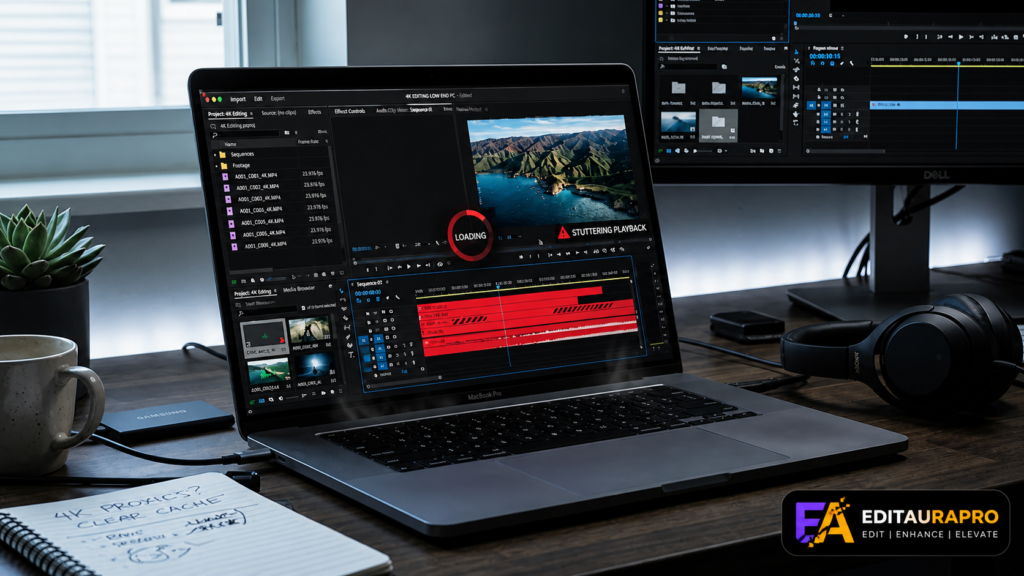
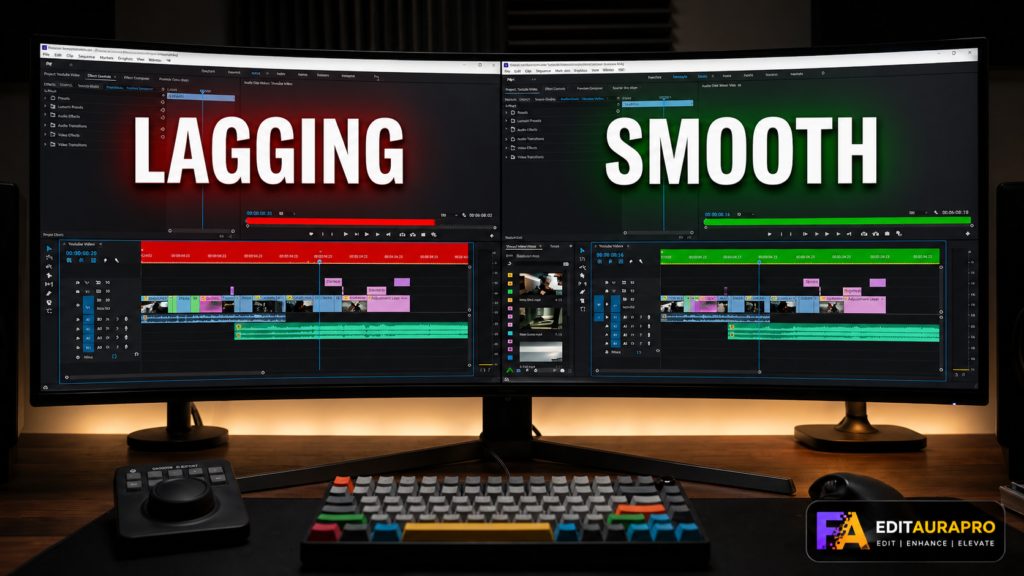
How to edit 4K video on a low-end PC in Premiere Pro is a common question among beginners who want to create high-quality content but don’t have powerful hardware. Editing 4K footage can be demanding, often causing lag, slow playback, and crashes on budget systems.
However, with the right techniques in Adobe Premiere Pro, you can still edit smoothly even on a low-end PC. This guide will show you how to edit 4K video on a low-end PC in Premiere Pro using simple methods that improve performance without upgrading your system.
Why 4K Editing is Difficult on Low-End PCs
Before learning how to edit 4K video on a low-end PC in Premiere Pro, it’s important to understand why 4K editing is challenging.
4K videos have higher resolution and larger file sizes, which require:
- More RAM
- Faster storage (SSD)
- Strong CPU and GPU
Low-end PCs struggle because they lack these resources, leading to lag and slow rendering.
1. Use Proxies for Smooth Editing
The most effective method for how to edit 4K video on a low-end PC in Premiere Pro is using proxies.
What are proxies?
Proxies are low-resolution copies of your original 4K footage.
How to create proxies:
- Right-click your footage
- Select Proxy → Create Proxies
- Choose a low-resolution preset
Editing with proxies reduces system load and ensures smooth playback.
2. Lower Playback Resolution
Another key step in how to edit 4K video on a low-end PC in Premiere Pro is reducing playback resolution.
Steps:
- Go to Program Monitor
- Change resolution from Full to 1/2 or 1/4
This reduces strain on your system and improves editing performance instantly.
3. Optimize Sequence Settings
Sequence settings play an important role in how to edit 4K video on a low-end PC in Premiere Pro.
Best settings:
- Use 1080p sequence instead of 4K
- Match frame rate with footage
This allows smoother editing while maintaining output quality during export.
4. Clear Media Cache Regularly
Cache files can slow down your system over time.
As part of how to edit 4K video on a low-end PC in Premiere Pro, you should:
- Go to Preferences → Media Cache
- Delete unused cache files
This improves performance and prevents lag.
5. Enable GPU Acceleration
GPU acceleration improves performance in Adobe Premiere Pro.
How to enable:
- Go to File → Project Settings → General
- Select Mercury Playback Engine GPU Acceleration
If unavailable, update your graphics drivers.
6. Use SSD Instead of HDD
Storage speed is crucial when learning how to edit 4K video on a low-end PC in Premiere Pro.
Why SSD is better:
- Faster file access
- Smooth playback
- Reduced loading time
Even an external SSD can significantly improve editing performance.
7. Close Background Applications
Running multiple applications slows down your system.
For better performance while applying how to edit 4K video on a low-end PC in Premiere Pro:
- Close unnecessary apps
- Disable startup programs
This frees up RAM and CPU power.
8. Render Timeline for Heavy Effects
Heavy effects like color grading can cause lag.
Fix:
- Select the timeline section
- Go to Sequence → Render In to Out
Rendering reduces lag and ensures smooth playback.
Common Mistakes to Avoid
While learning how to edit 4K video on a low-end PC in Premiere Pro, avoid:
- Editing directly in 4K sequence
- Ignoring proxy workflow
- Using high playback resolution
- Not clearing cache
Avoiding these mistakes improves your workflow.
Pro Tips for Better Performance
To master how to edit 4K video on a low-end PC in Premiere Pro:
- Shoot optimized footage
- Use efficient codecs
- Keep your software updated
- Organize your timeline
These tips help maintain smooth editing.
Conclusion
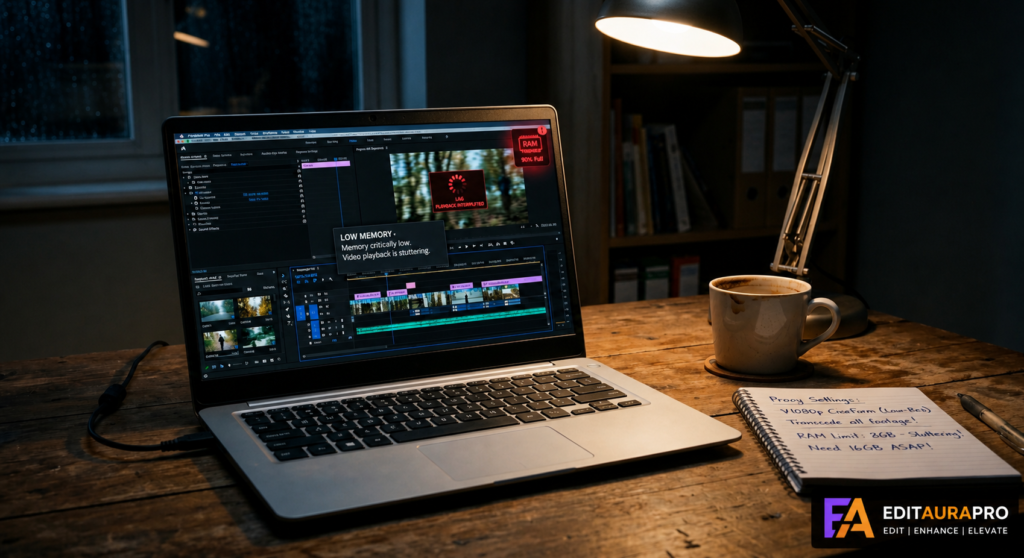
Mastering how to edit 4K video on a low-end PC in Premiere Pro is possible with the right techniques. By using proxies, lowering playback resolution, optimizing settings, and managing storage, you can edit high-quality videos without expensive hardware.
With Adobe Premiere Pro, even beginners can create professional content on a budget system. Start applying these methods today and improve your editing experience.
Want smooth 4K editing without upgrading your PC?
Apply these techniques today and improve your workflow instantly.